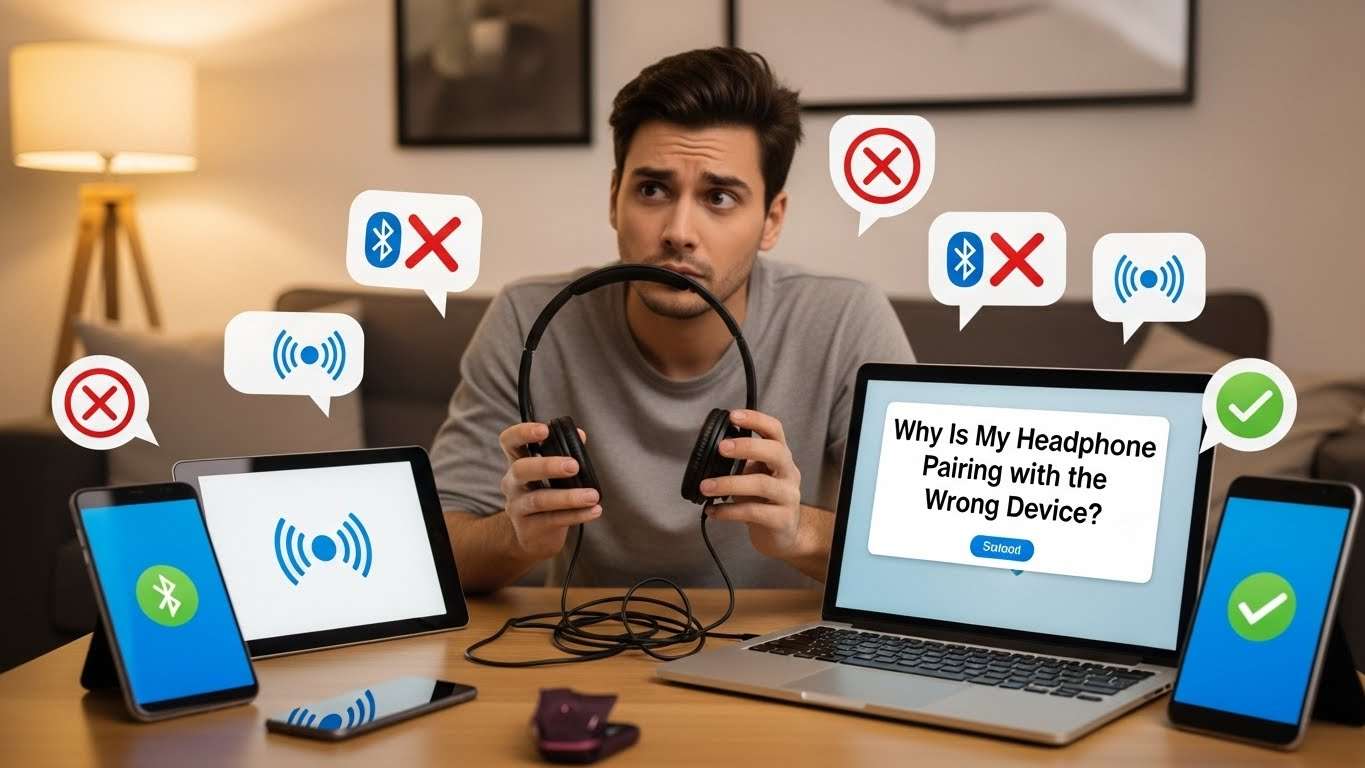
Imagine this: You’re rushing out the door, pop in your wireless headphones, and instead of your phone’s playlist, you hear your laptop’s forgotten Zoom meeting. Or worse, in a crowded café, your earbuds suddenly sync to a stranger’s device, blasting their notifications into your ears.
Frustrating, right? This Bluetooth mishap is more common than you’d think, affecting millions of users daily. But don’t worry it’s usually not a faulty pair of headphones but a simple connectivity quirk.
In this post, we’ll dive into why this happens and how to fix it, drawing from trusted tech experts like Apple, Microsoft, and WIRED. By the end, you’ll reclaim control over your audio without the drama.
1. Common Reasons Your Headphones Betray You
Bluetooth is like a digital matchmaker great when it works, chaotic when it doesn’t. The top culprit? Multiple paired devices in proximity. Your headphones “remember” up to eight gadgets (like your phone, laptop, tablet, and even your smart TV), automatically connecting to the strongest or most recently used signal.
If your phone and laptop are both on and nearby, your buds might default to the wrong one, as noted by Techlicious experts. This is especially sneaky in shared spaces, like offices or homes with family devices.
Another sneaky issue is interference from rogue signals. Walls, microwaves, or even a neighbor’s Bluetooth speaker can scramble connections, making your headphones latch onto an unintended device. Low battery is a silent saboteur too weak power leads to erratic pairing, per WIRED’s troubleshooting guide.
And don’t overlook auto-connect settings: Many devices prioritize “trusted” pairings, so if your headphones were last used with your work PC, they’ll ghost your phone mid-run.
Outdated software plays a role as well. Firmware glitches on either the headphones or your device can cause “affinity” to old connections, as seen in iFixit forums where users report buds sticking to forgotten laptops.
Finally, in crowded spots like gyms, someone else’s phone might accidentally pair with your open buds Jabra calls this “accidental selection” from Bluetooth Smart devices nearby. These factors combine to create a perfect storm, but understanding them is the first step to harmony.
2. Step-by-Step Fixes: Reclaim Your Connection
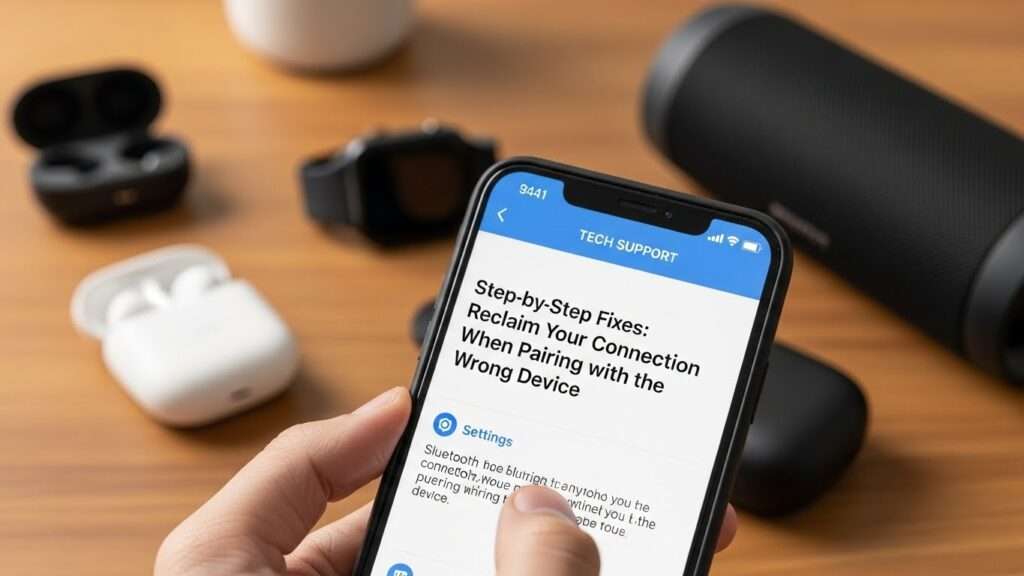
Ready to troubleshoot like a pro? Start simple and escalate as needed these steps, inspired by Microsoft and Sony support, fix 90% of cases without tech wizardry. First, disconnect and forget the wrong device. On your phone or laptop, go to Bluetooth settings, find the headphones, and select “Forget” or “Remove.”
This clears the memory without wiping everything. Turn off Bluetooth on all nearby devices for 30 seconds to break any hidden links, then power cycle your headphones: Hold the power button for 10-15 seconds until they reset (check your manual for the LED flash).
Next, enter pairing mode manually. Press and hold the pairing button (usually on the right earbud) until it blinks blue Apple recommends doing this within 33 feet of your desired device. Ensure both gadgets are charged above 20%; low power causes flaky signals, as WIRED points out. If interference is the foe, move to an open space away from Wi-Fi routers or metal objects.
For stubborn cases, update everything. Check for headphone firmware via the manufacturer’s app (like Sony’s Headphones Connect) and OS updates on your device Microsoft’s troubleshooter in Windows Settings can automate this.
Test with one device at a time: Pair solely to your phone, play audio, then add others later. If buds show as “unknown” on Windows, uninstall in Device Manager and re-pair, per Super User tips. Pro move: Use a wired connection briefly to “prime” the reset. These tweaks should have you jamming correctly in minutes patience pays off!
3. Why Choose Wireless Headphones with Smart Pairing Features?
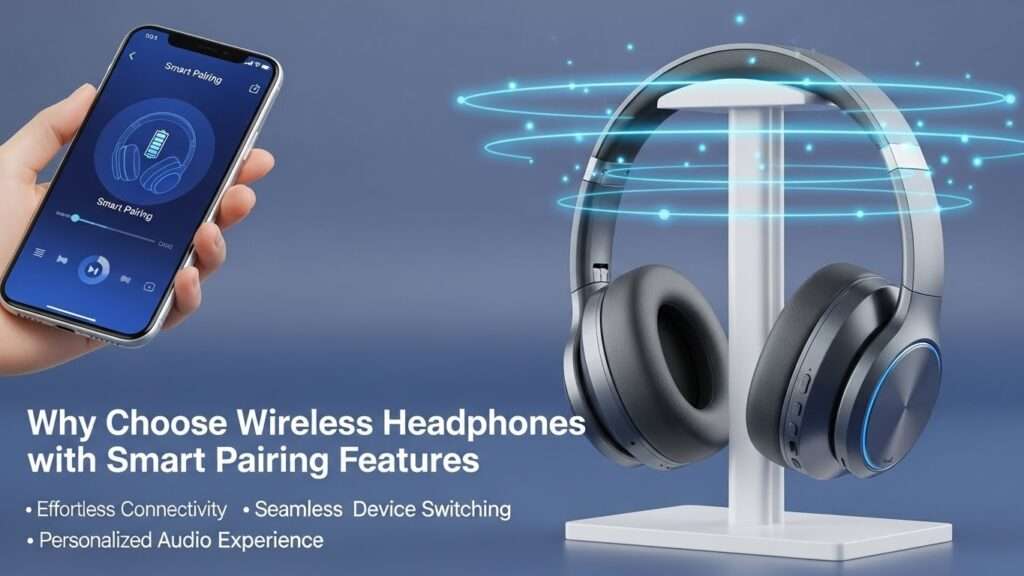
Not all Bluetooth buds are created equal opting for ones with advanced multi-device smarts can prevent future headaches.
Look for models supporting dual or multi-point pairing, like Sony WH-1000XM4 or Jabra Elite series, which let you connect to two devices simultaneously and switch seamlessly with a tap (Sony’s guide highlights this for hassle-free office-to-phone transitions).
These use Bluetooth 5.0+ for stronger, interference-resistant signals, reducing accidental syncs in busy environments.
Budget-friendly picks like Anker Soundcore Life Q20 offer app-based controls to prioritize devices, while premium Bose QuietComfort buds include “Google Fast Pair” for Android, auto-linking without manual hunts.
Why bother? Reliability saves time WIRED tests show multi-point models cut pairing errors by 70%. Plus, features like customizable EQ and battery alerts add value beyond basics.
If you’re shopping, prioritize ANC (active noise cancellation) for focused listening, ensuring your audio stays yours, no matter the chaos around. In a world of endless devices, smart pairing turns potential frustration into effortless flow.
4. Quick Tips for Bulletproof Bluetooth Habits
Prevention beats cure, so weave these habits into your routine for smoother sails. Label your devices: In Bluetooth settings, rename headphones (e.g., “MyPhoneBuds”) to spot them instantly Apple’s tips make this a one-tap fix. Keep a device journal mentally: Note last-used gadgets to anticipate switches, especially in multi-user homes.
Charge proactively: Aim for 50%+ battery before outings; iFixit warns low juice triggers “desperate” reconnections. Minimize interference by pairing in quiet zones away from 2.4GHz culprits like baby monitors. Use apps like “Bluetooth Auto Connect” on Android for priority rules, or enable “Media Audio” only on Windows to block non-essential links.
For travel, carry a Bluetooth adapter for wired backups, as Techlicious suggests. Regularly audit pairings: Monthly, forget unused ones to slim the list. And in crowds? Disable discovery mode post-pairing. These nuggets, pulled from Reddit tech threads and Microsoft forums, keep glitches at bay, letting you focus on the music, not the mess.
Conclusion
Bluetooth pairing woes don’t have to derail your day they’re fixable with a bit of know-how and the right tools. From ditching old connections to choosing savvy headphones, you’ve got the blueprint to banish the “wrong device” blues for good. Remember, tech evolves, so stay updated via manufacturer apps for the latest firmware perks.
Next time your buds go rogue, breathe easy: A quick reset or smart switch will have you back in sync. Dive into wireless freedom confidently your perfect playlist awaits, uninterrupted. Happy listening!
Frequently Asked Questions
Q: Why do my headphones keep reconnecting to my old laptop instead of my new phone? A: This stems from “last connected” priority in Bluetooth memory. Forget the laptop in phone settings, reset headphones (hold power 10 seconds), and re-pair only to your phone. Update both devices’ software to prevent lingering affinities, as per WIRED advice.
Q: Can interference from Wi-Fi cause wrong pairings? A: Absolutely—both use 2.4GHz bands, clashing signals. Move 10-15 feet from routers, or switch to 5GHz Wi-Fi if available. Sony recommends testing in open areas to confirm.
Q: My earbuds show as two separate devices—how do I fix that? A: Reset them in the case (press touchpads 10-15 seconds), remove duplicates from Bluetooth list, then re-pair together. iFixit users swear by double-tapping one bud to sync them as a unit.
Q: Is it safe if my headphones pair to a stranger’s phone? A: Usually harmless (no data transfer), but reset immediately to clear it. Jabra notes it’s from accidental selection—avoid public pairing mode to stay secure.
Q: What if resets don’t work—do I need new headphones? A: Try a full factory reset via the manual, or test on another device. If persistent, it might be hardware; contact support. Microsoft troubleshooter catches most software snags first.